Information for all customers · As of August 31, 2026
Overview: what happens from September 1
Microsoft is switching the sign-in process for Microsoft 365 to passkeys. Starting Tuesday, September 1, 2026, a prompt to set up a passkey may appear after signing in. Microsoft is rolling this out gradually, so the prompt will not reach everyone on the same day.
At a glance
- The prompt is real. It comes from Microsoft and appears in the sign-in window – not phishing.
- It can be skipped. It will appear again at one of your next sign-ins. It becomes mandatory on February 1, 2027.
- Setup takes about two minutes.
- Multiple passkeys can be registered, and this is explicitly recommended.
- The passkey replaces the SMS code, not the password. The password remains in place for now.
- If you run into problems: submit a ticket and we'll help.
The prompt you will see
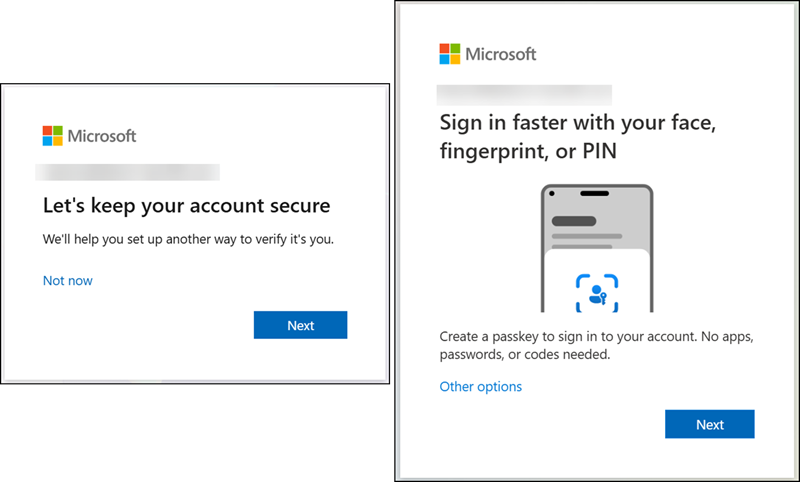
After a normal sign-in to Outlook, Teams, or SharePoint, a Microsoft window will appear asking whether you want to set up a passkey. Typically right after you've completed your current verification step.
Short and important
The prompt is not a phishing email and not an error. You can follow it.
And you don't have to do it immediately: clicking "Later" or "Not now" still works.
Why this is happening
Microsoft will disable verification by SMS and phone call on February 1, 2027. Anyone who hasn't set up an alternative method by then will be locked out of their account. The reason: SMS codes can be intercepted on fake sign-in pages, passkeys cannot.
What is a passkey?
A passkey is a sign-in method without typing in a code. Instead of an SMS code, you unlock the sign-in with something your device (phone or laptop) can already do:
- Fingerprint
- Face recognition
- Windows Hello
- Device PIN
- or a physical security key
The passkey itself stays on the device. Fingerprint, face, and PIN are not transmitted to Microsoft – they only serve to unlock the passkey on the device. Think of it like a key in a safe: the fingerprint opens the safe, the key itself never leaves it.
What you get out of it
Phishing becomes ineffective. A passkey only works on the real Microsoft site. A password or SMS code can be handed to an attacker by accident, a passkey cannot.
Faster in daily life. No waiting for an SMS, no typing codes, no problems abroad or with poor reception. One glance or one touch, and you're signed in.
Setting up a passkey: four options, one is enough to start
Easiest when the prompt appears. You can also start anytime on your own:
mysignins.microsoft.com/security-info → Add sign-in method → Passkey
Depending on your device, a different option works best. You don't need all of them.
Option A: with your smartphone (Microsoft Authenticator)
Recommended for getting started.
Prerequisites: latest version of Microsoft Authenticator, at least iOS 17 or Android 14, and a configured screen lock (Face ID, Touch ID, fingerprint, or PIN).
- Open Microsoft Authenticator on your phone and tap the work account.
- Select Create passkey.
- Confirm once with your current method (SMS code or app approval).
- Follow the instructions and finish with Face ID, fingerprint, or device PIN.
Alternatively, start on your computer at mysignins.microsoft.com/security-info → Add sign-in method → Passkey. A QR code will be displayed that you scan with your phone. Both devices need Bluetooth and internet for this.
Option B: on a Windows PC (Windows Hello)
- Open mysignins.microsoft.com/security-info in Edge.
- Add sign-in method → Passkey → This device.
- Confirm with Windows Hello: face, fingerprint, or Windows Hello PIN.
If you already use Windows Hello to sign in at your workstation, you already have a secure method there. On that PC the prompt usually won't appear at all.
Option C: in a password manager (for example 1Password)
- Start the setup as described in Option A or B.
- When the password manager asks whether the passkey should be saved there: Yes, and choose the appropriate vault.
- Confirm with your password manager login. Done.
The advantage: a passkey from a password manager is available on all devices where the vault is set up – phone, notebook, secondary device. You don't need to create it separately everywhere.
Important for your personal Microsoft account
Save the passkey in your personal vault, never in a shared one. Shared vaults are intended for functional accounts used by several people.
Option D: with a physical FIDO2 security key
For workplaces without a phone.
A security key is a small stick for the USB port.
- Start the setup on a Windows computer. On Mac and iPhone, new keys cannot be registered in the browser.
- Add sign-in method → Passkey → Security key.
- Insert the key, set the key's PIN, touch the button. Done.
Multiple passkeys – and which one to start with
Multiple passkeys can be registered, for example one on your phone and one on your workstation computer. This is encouraged: if a device is lost or breaks, you can continue with the second one without waiting for help. One is enough to start. If access is restricted, IT can help.
Recommendation for the first passkey
The first passkey for your personal user account should ideally be set up with your personal mobile phone, via Microsoft Authenticator. That's the fastest way and works everywhere, even on the go.
If that isn't possible or not wanted: please submit a ticket. We'll find a suitable solution together.
Where to see your methods
At mysignins.microsoft.com/security-info you can view, add, and remove all registered sign-in methods.
Functional accounts: shared accounts and shared vaults
The change affects every account where someone signs in directly with a username and password – including accounts such as reception, an info address, or a site account.
Please not on a personal phone
For a shared account, a single person should not simply store the passkey on their private phone. Sign-in would then depend on that person and their device; during holidays, illness, or departure, the team faces a locked account.
The right way
If you're responsible for such an account: please create the passkey using one of the methods below if possible. If anything is unclear, please open a ticket and we'll go through the methods together:
- a passkey in a shared password manager vault that all authorized users have access to – the most practical way for most functional accounts
- a physical security key that stays at the workplace
- or an adjustment so that shared sign-in is no longer necessary
Technical service accounts without interactive sign-in are handled separately. If you're unsure, just ask.
Frequently asked questions
Do I have to do this right now?
No. The prompt can be skipped via Later or Skip for now. It will appear again at one of your next sign-ins. Since setup only takes two minutes, it's worth doing the first time it appears – by February 1, 2027 at the latest it becomes mandatory.
What happens to my password?
It remains in place for now. The passkey replaces the combination of password and SMS code during sign-in; depending on the application, the password may still be needed. When Microsoft offers the passkey, it's the better choice.
Does Microsoft get my fingerprint?
No. Fingerprint, face, and PIN stay on the device and are never transmitted. They only serve to unlock the passkey on the device.
I don't have a work phone and don't want to use my private one.
Please submit a ticket so we can find an alternative, for example Windows Hello on your workstation or a physical security key.
What if I lose or replace my phone?
Submit a ticket. We'll issue a one-time access code that lets you set up a passkey on the new device. Anyone who already has a second method registered can continue without help – that's exactly why the second one is worthwhile.
The prompt keeps coming back even though I set up the passkey.
A passkey is per device. If you only set it up on your PC, you'll still be prompted on your phone, and vice versa. Set it up on the second device as well, then it stops. A passkey in a password manager works on all devices with that vault and avoids exactly this.
On Android, the passkey stops working after changing the PIN.
This is technically expected: if the device PIN or unlock method is changed, the passkey becomes invalid and must be set up again. This requires a second sign-in method, or a ticket.
How do I know a passkey prompt is real?
Real prompts appear only directly in the Microsoft sign-in window, after a sign-in you started yourself. An email with a link ("Your passkey is expiring", "Confirm passkey now") is phishing. No clickable links will be sent about this topic.
The new security key won't register.
The initial registration of a physical FIDO2 security key in the browser only works on a Windows computer, not on Mac and not on iPhone.
Help and tickets
If setup fails, an unexpected message appears, or you're unsure which option is right: please submit a ticket. We'll set up the passkey together if you like, by phone or remote support – it takes just a few minutes.
Submit a ticket: central-services@sharkbyte.ch
Created by SHARKBYTE AG, August 2026. Based on Microsoft's announcement regarding the switch to passkeys and the discontinuation of Microsoft-provided SMS and phone call verification.
Was this article helpful?
That’s Great!
Thank you for your feedback
Sorry! We couldn't be helpful
Thank you for your feedback
Feedback sent
We appreciate your effort and will try to fix the article