Follow these steps to change your Microsoft 365 password via the web portal:
1. Open the Website
- Open a web browser and go to portal.office.com.
2. Log In
- Sign in using your Microsoft 365 email address and current password.
- If multi-factor authentication (MFA) is enabled, enter the additional security code.
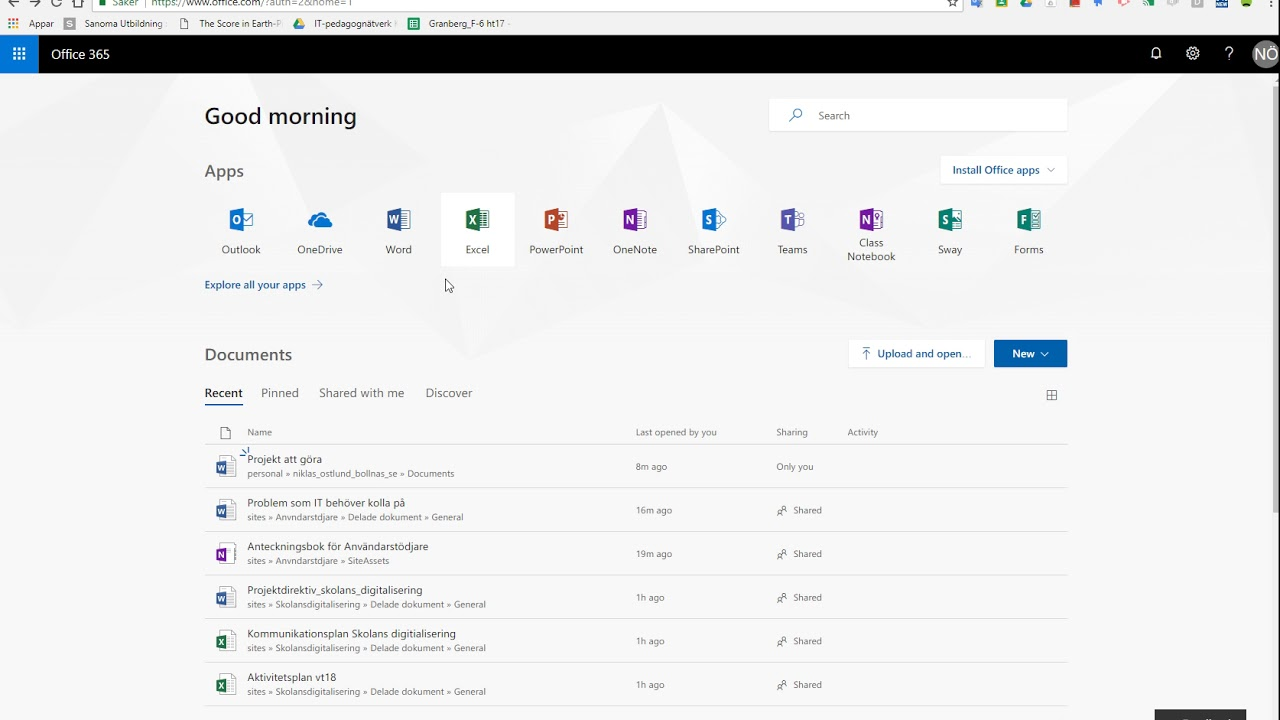
3. Access Account Settings
- Click on your profile picture or initials in the top-right corner.
- Select "View account" from the dropdown menu (or a similar option depending on your language settings).
4. Change Your Password
- In the left menu, navigate to "Security & Privacy".
- Click on "Change Password".
5. Set a New Password
- Enter your current password.
- Create a new password and confirm it.
- Note: Your new password must comply with your organization’s security policies (e.g., minimum length, special characters, uppercase/lowercase).
- Click "Submit" or "Save" to confirm the change.
6. Confirmation
- A confirmation message will appear, indicating that the password has been successfully changed.
- Your new password will take effect at your next login.
7. Update Other Devices
If you use Microsoft 365 on other devices (e.g., smartphone, tablet, or the Outlook desktop app), you will need to update your password there as well.
Tip: Forgot Your Password?
If you’ve forgotten your password and cannot log in:
- Click "Forgot my password" on the login page.
- Follow the instructions to reset your password.
With this guide, you can easily and securely change your password! ?
Video by Microsoft: Change your Microsoft 365 for business password
Was this article helpful?
That’s Great!
Thank you for your feedback
Sorry! We couldn't be helpful
Thank you for your feedback
Feedback sent
We appreciate your effort and will try to fix the article